

MCP
Connect your AI assistant to Poptin. Explore performance, manage popups, and prepare your next email campaign through conversation.
Meet Poptin MCP
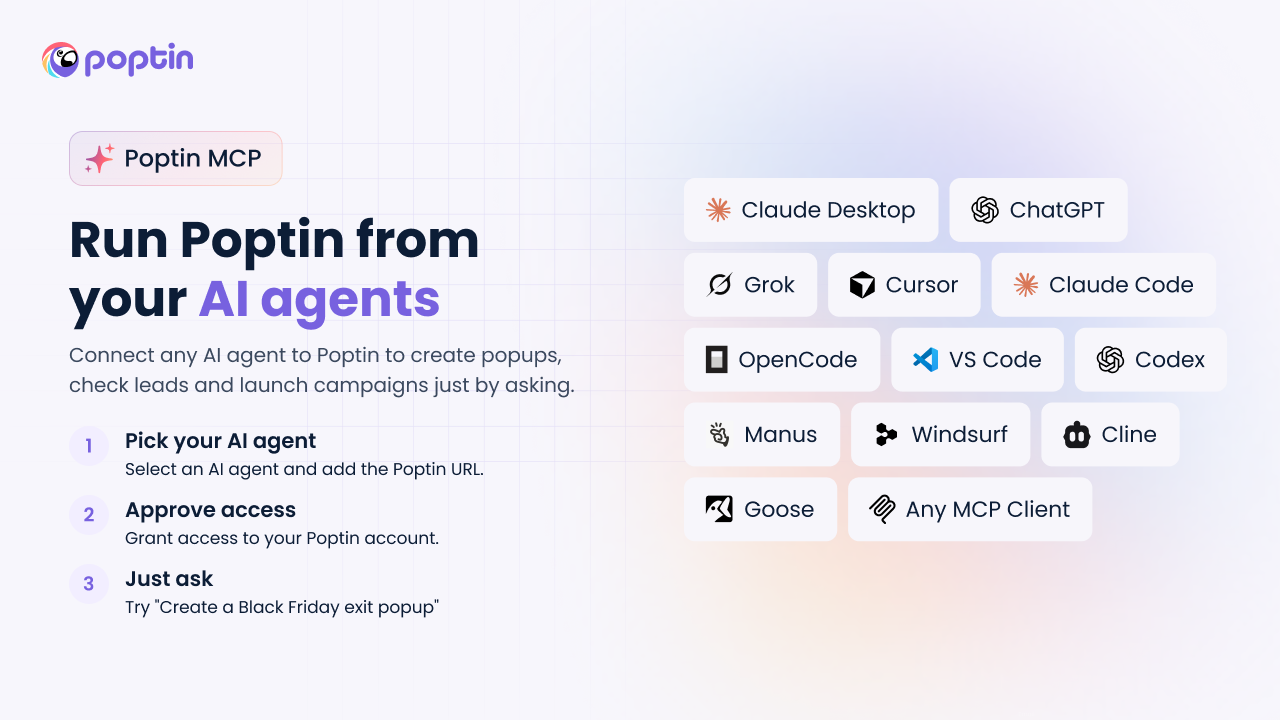
Ask a question. Find an opportunity. Take the next step - all from your AI assistant.
Poptin MCP connects your Poptin account to a compatible AI assistant using the Model Context Protocol (MCP). It gives your assistant access to supported Poptin actions and account context, so you can work in everyday language.
Find your strongest popups, compare email campaigns, and explore where conversions and engagement come from.
Find, rename, pause, or resume existing popups and embedded forms. Turn insights into a clear next step.
Prepare an email campaign, choose a template, review the audience, and send or schedule after confirmation.
Preview and save segments. Organize reusable contact properties and subscription topics for your next campaign.
New here? Connect your assistant, then try your first question.
Connect your assistant
You’ll need a Poptin account and an AI application that supports remote MCP connections with OAuth sign-in. Available actions depend on your account access and enabled Poptin features.
1. Add Poptin to your AI application
Open your AI application's integrations or MCP settings and add a remote server. The exact labels vary by application.
| Setting | What to enter |
|---|---|
| Connection name | Poptin |
| Server URL | https://mcp.popt.in/mcp |
| Authentication | OAuth / sign in to Poptin |
2. Sign in and choose your account
Follow the Poptin sign-in flow. Select the account or subaccount you want to connect, review the requested access, and authorize the connection. Return to your AI application when the flow finishes.
One connection, one accountEach connection is tied to the Poptin account you authorize. To work with another account, authorize a separate connection for that account and select it in your AI application.
3. Try a simple request
Enable the Poptin connection in your conversation, then ask:
Show me the popups and embedded forms in my Poptin account.
Your assistant should be able to list your poptins. An empty account can return no results; that alone does not mean the connection failed.
Sign in through Poptin. You do not need to paste a password or token into the conversation. Poptin API keys cannot be used to sign in to this MCP connection.
Start with a question
Choose a starting point and adapt the names and dates to your business.
Find what’s working
Which five popups had the highest conversion rate last month? Only include popups with at least 100 views.
Explore a useful breakdown
Compare popup conversions on mobile and desktop last month.
Learn from your email campaigns
Compare the email campaigns sent last month by click rate. Explain which performed best and how much data each result is based on.
Find the right poptin
Show me the active popups and embedded forms on my website.
Keep your workspace organized
Rename “Summer offer” to “November welcome offer”.
Control an existing poptin
Pause “November welcome offer” and check that it is paused.
Replace the example names with poptins in your connected account. Pausing and resuming apply to existing poptins that are not drafts.
Prepare a campaign
Help me prepare a newsletter campaign. Walk me through the audience and design, then show me a summary for review before sending.
Build a segment
Preview a segment of subscribed contacts who opened an email campaign but did not click. Show me the audience size before saving it.
Organize contact information
Show me my existing contact properties and subscription topics so I can reuse them in my next campaign.
Email, segments, and subscription topics are available when the corresponding features are enabled for your account.
Make the next question specific. Include a date range, a website or poptin name, and the outcome you care about. Follow up with “break that down by device” or “compare those campaigns” to explore the result.
Go further
Start with a question, then build toward a reviewed action. Expand a workflow to see what that looks like.
Find an opportunity in your popup performance
- Start with a period. Ask for a summary of popup views, conversions, and conversion rate last month.
- Compare fairly. Rank popups by conversion rate and ask for a minimum number of views, so a tiny sample does not dominate the results.
- Explore the difference. Ask for a device or traffic-source breakdown to understand where results vary.
- Choose the next step. Ask your assistant to explain the findings, then decide whether to pause or resume a specific existing poptin.
Performance data shows what happened. Ask your assistant to distinguish observations from possible explanations.
Prepare an email campaign from draft to review
- Set the basics. Provide the campaign name, subject, and sender details. Your assistant checks the account’s sending setup.
- Choose the audience. Describe who should receive the campaign and who should be excluded. Review the audience preview before saving it.
- Choose the design. Browse Poptin’s email template gallery or your saved templates, then review the content.
- Review and test. Ask for a launch summary covering the sender, subject, audience, and design. Request a test email and specify its recipients if needed.
- Confirm the launch. Choose to send now or schedule a date and time, including the timezone. Sending and scheduling require explicit confirmation.
You can stop at a draft and return to it later. If account or sending requirements are missing, your assistant will explain what needs attention.
Build an audience you can reuse
- Describe the group. Use contact properties, subscription preferences, website activity, popup interactions, or email engagement to explain who belongs in the audience.
- Add exclusions. Say which contacts should be left out.
- Preview the audience. Review matching contacts and subscribed contacts before saving.
- Save with a useful name. Give the segment a name that makes its purpose clear when you return to it.
Matching contacts and subscribed contacts can differ. For a campaign, review the campaign’s own audience preview to understand who is eligible to receive it.
Review before you commitMCP can make changes in your connected account. Read the proposed action and its scope carefully. Sending or scheduling a campaign requires confirmation. Deletions require an impact review and fresh approval before they proceed.
Help & common questions
My assistant cannot connect. What should I check?
Check that the server URL is https://mcp.popt.in/mcp and that your AI application supports remote MCP connections with OAuth. Complete the Poptin sign-in flow, then enable the connection in the conversation. If authorization has expired and cannot renew automatically, reconnect through your AI application.
Why is a feature missing or unavailable?
Your connection follows your current account access and feature availability. Email campaigns, segments, or subscription topics may be unavailable for your account. Tell your assistant what you want to do; if the action is unavailable, it should explain the limitation.
Can I switch to another Poptin account?
Authorize a separate connection for the other account or subaccount, then select that connection in your AI application. Asking the assistant to switch accounts does not change the account authorized for an existing connection.
How should I read analytics results?
Specify the dates and metric you want to compare. Popup reporting uses inclusive reporting dates. Email campaign performance covers cumulative statistics for campaigns selected by when they were sent; engagement activity during a period answers a different question. State which you mean, and ask your assistant to explain missing or still-processing statistics.
How do I stop using the connection?
Disable or remove the Poptin connection in your AI application. Follow that application's disconnect or authorization-revocation options to end access. Reconnect through Poptin sign-in whenever you want to use it again.
Still need a hand? Contact Poptin support with the AI application you are using, the step that failed, and the error message. Leave passwords and tokens out of your message.
This is just the start. We’ll expand this guide as new Poptin MCP capabilities become available.
Updated 2 days ago